By GBI LensLab Editorial Team
Editorial note: This is a research-based guide, not a hands-on camera or accessory test. Manufacturer documentation was checked on September 23, 2026. The images are illustrative and do not document testing for this article.
If a temperature warning appears, stop recording and allow the camera to cool before continuing. Repeatedly restarting a hot camera is not a reliable workaround: Sony warns that recording may remain unavailable or the camera may shut down again without sufficient cooling. See its α6700 operating precautions.
The practical approach is to identify the actual cause of the interruption, choose an appropriate recording mode and rehearse the complete setup before an important shoot.
First, confirm why recording stopped
Record the warning message and elapsed recording time before changing anything. A stopped clip does not, by itself, identify a thermal problem.
- Temperature warning: On the original Canon EOS R5, a red temperature warning means recording will soon stop automatically. Recovery requires cooling, according to Canon’s movie recording precautions.
- Fixed clip limit: The original EOS R5 has a 29-minute, 59-second limit per ordinary, non-High Frame Rate movie. Reaching that limit is distinct from overheating. This specification should not be applied to the R5 Mark II or R5 C. See the R5 recording limits.
- Media problem: A card that cannot sustain the selected recording mode may cause recording problems. Check the camera’s card requirements rather than treating every interruption as overheating. Canon explains this in its recording-quality guidance.
- Power problem: Check the battery level and external-power indicator. USB power does not necessarily eliminate battery use; Sony documents supplemental battery consumption under some conditions in its α6700 Help Guide.
What to do when the camera overheats
- End the take and switch the camera off. Canon advises powering down rather than continuing to use Live View while the camera is hot. Follow the model’s temperature-warning instructions.
- Move it out of direct sunlight. Allow air to circulate around the body. Canon recommends shade and external air cooling in its EOS R5/R6 thermal guidance.
- Leave hot media alone. Do not remove a card immediately after a thermal warning or use touch as a temperature test. Canon specifically says to let the camera cool before removing a potentially hot card. See its card-handling precautions.
- Allow enough recovery time. There is no universal five- or ten-minute reset. Canon says recovery depends on the surroundings, recording settings and camera operation in its cool-down guidance.
Do not put ice directly against the camera. Canon warns that this can cause condensation and malfunction. Use air cooling instead; do not improvise with wet cloths or frozen packs against the body. See Canon’s cooling precautions.
Reduce heat before the next take
Use shade and sensible screen positioning
Shade the camera without wrapping it in fabric or enclosing it in a bag while recording. A separately supported umbrella or overhead shade is preferable to a cover pressed against the body. Keeping the camera out of direct sun follows Canon’s thermal-management advice.
With an articulating screen, consider an open position that leaves the rear of the camera exposed. Sony’s published α6700 thermal-runtime figures specifically assume an open monitor; they should not be treated as measurements for a closed-screen setup. See the test conditions.
Do not use open battery doors, card doors or a raised flash as makeshift cooling vents. Follow the manufacturer’s normal cover and accessory instructions, and keep dust and moisture out. Sony’s handling precautions explain the risks of contamination.
Choose a less demanding recording mode
High-resolution and high-frame-rate recording can increase processing load and internal temperature. If the delivery format allows it, test a lower frame rate or resolution rather than recording everything at the camera’s maximum settings. Canon describes this workload relationship in its movie recording guidance.
Also check whether the camera offers standard and oversampled or high-quality 4K modes. Canon specifically recommends considering a non-oversampling mode when its image quality is sufficient, because this may extend recording time. That is model-specific advice, not a guarantee for every 4K camera. See Canon’s thermal guidance.
Do not assume that reducing bitrate alone fixes overheating. Canon describes lower-bitrate options as allowing more footage on a given card; that storage benefit is not a thermal-runtime guarantee. See its compression-mode descriptions.
Reduce standby heating and understand temperature settings
Power down during genuine breaks. When the original EOS R5 must remain ready, its documented Standby: Low res. option limits temperature rise during standby without changing recorded image quality. Check the R5 menu documentation and the instructions applicable to your installed firmware.
Some cameras offer a higher automatic shutdown-temperature setting. On the Sony α6700, Auto Power OFF Temp. → High raises the shutdown threshold; it does not cool the camera. Sony instructs users to use a tripod rather than hold the camera when this setting is selected because prolonged contact can cause low-temperature burns. Read the setting’s precautions before changing it.
Why there is no universal 4K recording time
Sony lists approximately 30 minutes at 25°C/77°F and 10 minutes at 40°C/104°F for the α6700 under its specified conditions: Auto Power OFF Temp. set to High, XAVC S 4K at 60p/50p, 150 Mbps, 4:2:0 8-bit, no Wi-Fi connection and an open monitor, starting after the camera has been off for a while. These are manufacturer reference figures—not GBI LensLab measurements or promises for other setups. See Sony’s runtime conditions.
Use published figures as a starting point for planning. Do not substitute another photographer’s best-case runtime for a rehearsal with your own equipment.
External power and memory cards: solve the right problem
External power primarily addresses power availability
For the α6700, Sony recommends a USB Power Delivery source supporting 9 V/3 A and requires a sufficiently charged battery to remain installed. The battery is not charged while the camera is on, and temperature can still shorten continuous recording time. External power is therefore not a guaranteed cooling solution. See Supplying power from a wall outlet in the α6700 Help Guide.
If using a DC coupler, sometimes called a dummy battery, select a camera-compatible coupler and its specified power supply. Treat it as a power accessory, not permission to ignore thermal warnings. Canon, for example, lists the AC-E6N adapter and DR-E6 coupler combination for the original R5 in its official specifications.
Match the card to the recording mode
Do not buy V90 media solely as an overheating remedy. Sony’s α6700 table specifies SDXC V60 or faster for ordinary XAVC S 4K and XAVC HS 4K recording up to 280 Mbps, while XAVC S-I 4K up to 600 Mbps requires SDXC V90 or faster, with proxy recording off. Slow-motion and other configurations have separate requirements. These are recording-compatibility specifications, not cooling ratings. Consult Sony’s complete card table.
Evaluate cooling fans and monitors without assuming a cure
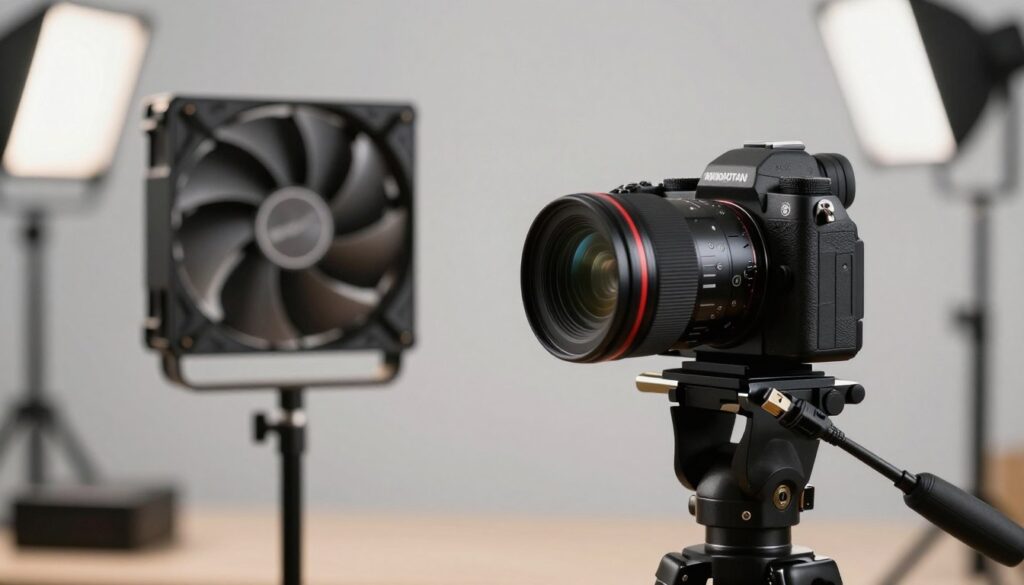
A purpose-built fan needs to fit the specific camera and leave the screen and connections usable. For example, Fujifilm documents the FAN-001 installation on the X-H2S with the monitor open and warns that fan noise may be audible in recorded movies. Follow the X-H2S cooling-fan instructions; a quiet-mode label is not evidence that your microphone will miss the sound.
Before relying on a fan, test its mounting security, screen clearance, power endurance and noise using the actual microphone position.
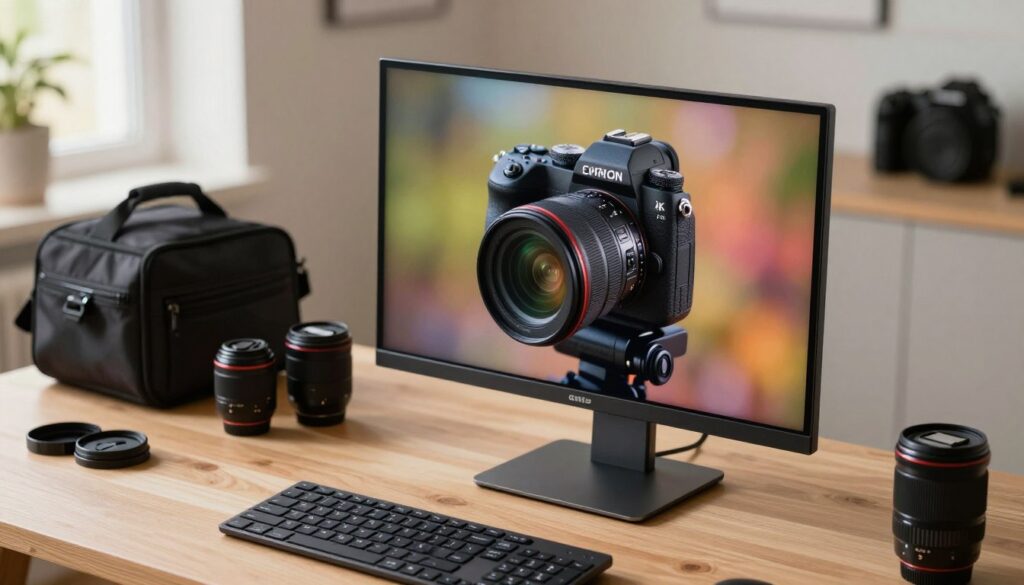
Do not assume an external monitor removes the camera’s thermal limitations. A particularly important monitoring issue is that the original R5’s clean HDMI output omits battery, card-space and high-temperature warnings. Plan how to check camera status when using an external display or recorder. Canon explains this in its HDMI display precautions.
| Accessory | Appropriate role | What to verify |
|---|---|---|
| External monitor | Viewing the camera’s HDMI feed | Screen positioning and access to warnings; clean HDMI may hide them. Canon example. |
| USB power supply or DC coupler | External power, not guaranteed cooling | Camera compatibility, required output and battery requirements. Sony power guidance. |
| Camera-compatible cooling fan | Active cooling where supported | Mounting instructions, screen clearance and recorded noise. Fujifilm example. |
Run a realistic pre-shoot check
Use this suggested procedure to establish a workable schedule rather than chasing the longest possible take:
- Record the configuration: camera model, firmware, resolution, frame rate, codec, bitrate, card, power source and temperature setting.
- Build the actual rig: include the lens, microphone, monitor, wireless connections and cooling accessories you intend to use.
- Rehearse the planned workload: include setup time, standby periods and the expected take length in representative conditions. Stop for warnings.
- Check recovery: rehearse the next take after the break you can realistically provide—not only the first take from a cool start.
- Review the files: check playback and audio, then choose shorter takes, longer breaks or a fallback recording mode if needed.
For an unrepeatable event, plan backup coverage rather than scheduling right up to the longest duration achieved in a rehearsal. If shutdowns occur unexpectedly from a cool start, persist in modest recording modes or accompany other errors, document the conditions and contact the manufacturer’s support team instead of attempting thermal-protection workarounds.
About the author: GBI LensLab Editorial Team publishes informational content about cameras, lenses, image sensors, and digital imaging technology focused on lenses, sensors and emerging visual technology.
Sources
- ILCE-6700 Help Guide: Precautions — Sony
- EOS R5 Product Manual: General Movie Recording Precautions — Canon
- EOS R5 Product Manual: Movie Recording Quality — Canon
- Precautions about the Camera’s Internal Temperature Increases due to Movie Recording (EOS R5/EOS R6) — Canon
- ILCE-6700 Help Guide: Auto Power OFF Temp. — Sony
- EOS R5 Product Manual: Other Menu Functions — Canon
- ILCE-6700 Help Guide, including Supplying Power from a Wall Outlet — Sony
- Canon Support for EOS R5: Specifications and Documentation — Canon U.S.A.
- ILCE-6700 Help Guide: Memory Cards That Can Be Used — Sony
- FUJIFILM X-H2S Owner’s Manual: Cooling Fans — Fujifilm

The GBI LensLab Editorial Team publishes informational guides about cameras, lenses, image sensors, photography workflows, camera maintenance and digital imaging technology. Technical specifications are checked against manufacturer documentation and other appropriate primary sources when available.